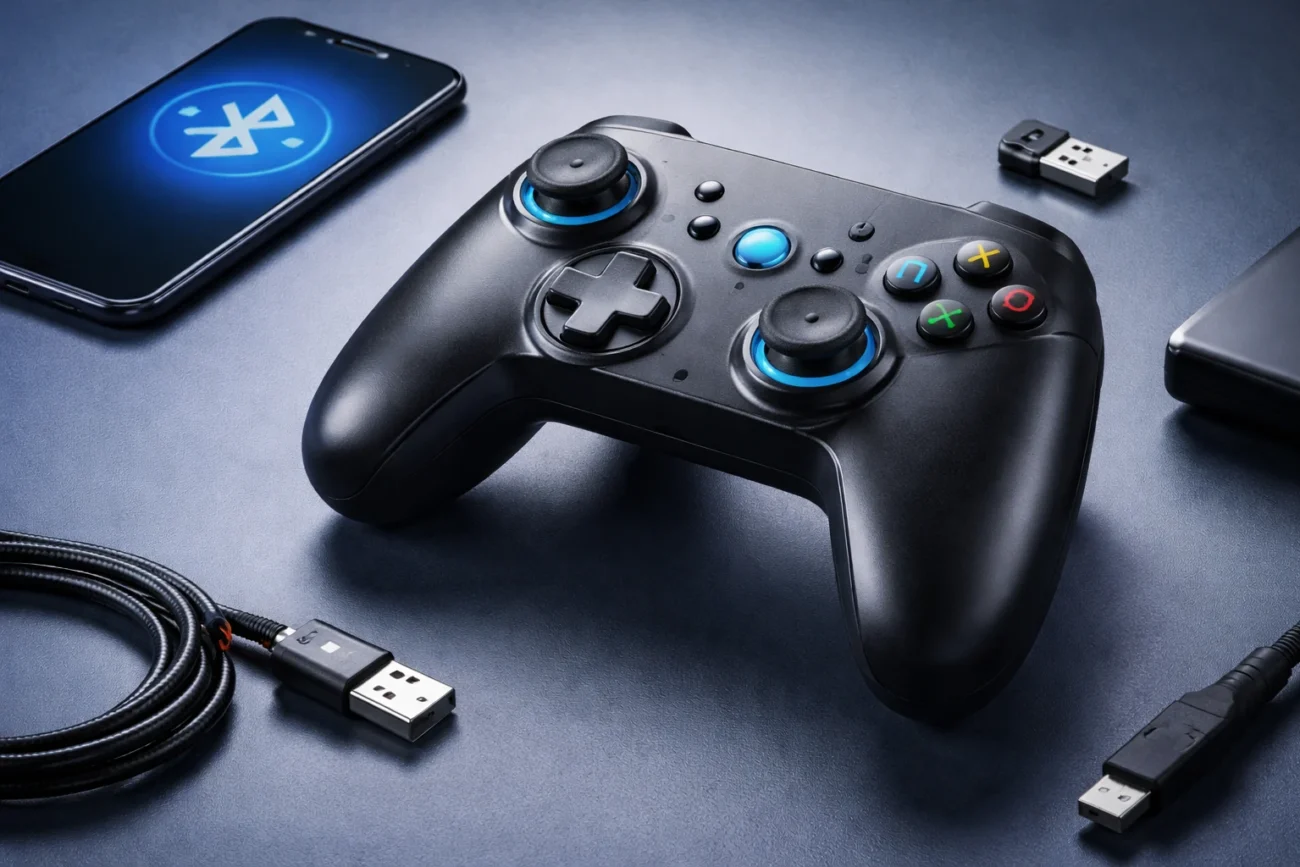
Search for “Connectivity HSSGamepad” and you’ll land in a strange corner of the internet. Page after page promises answers about pairing, lag, and compatibility. But very few explain what the term actually refers to, or why so many users end up searching it in the first place.
That gap matters. Because most people typing this into Google aren’t doing research for fun. They’re stuck. Their controller won’t connect, keeps dropping signal, or behaves differently depending on the device. Others are trying to figure out if HSSGamepad is even a real, supported product or just a name that’s been repeated across low-detail guides.
This article takes a different approach. It starts with the basics—what “Connectivity HSSGamepad” appears to mean—and then moves into the part that actually helps: how these controllers are supposed to connect, where things go wrong, and what you can do about it without wasting an hour on trial and error.
What “Connectivity HSSGamepad” Actually Refers To
The phrase itself isn’t a formal product name or a technical standard. It’s a keyword cluster that shows up across multiple blogs and small tech sites, often used to describe connection methods and troubleshooting advice for a game controller labeled “HSSGamepad.”
Here’s where it gets complicated. There is a website using that name, but it reads more like a content hub than a traditional manufacturer site. It offers general advice about pairing, battery life, and compatibility, but stops short of giving clear product listings, model numbers, or a defined company identity.
So what does the term mean in practice? It usually refers to how a generic or lightly branded gamepad connects to devices—through Bluetooth, USB cable, or sometimes a wireless receiver. That’s what users are really searching for: how to make the controller work, not what brand story sits behind it.
That said, the lack of clear documentation shapes everything that follows. If you’re troubleshooting an HSSGamepad, you’re often working without the safety net of official manuals or reliable firmware tools. You have to rely on standard controller behavior and process of elimination.
How HSSGamepad Connectivity Is Supposed to Work
Even with limited official information, most of the connection patterns match what you’d expect from mid-range controllers sold online. They typically support both wired and wireless modes, with Bluetooth as the default for mobile devices and PCs.
Wired Connection Through USB
The simplest path is a direct USB connection. Plug the controller into a PC or console, and the system should recognize it as a standard input device. On Windows, that usually means it appears as an Xbox-style controller or generic HID device without needing extra drivers.
The advantage here is stability. A wired connection eliminates interference, battery-related issues, and most pairing problems. If a controller works over USB but not over Bluetooth, you’ve already narrowed the issue to the wireless side.
But here’s the thing. Not all cables are equal. Some USB cables only provide power and won’t carry data, which leads to confusion when the controller lights up but doesn’t respond. That small detail trips up more people than you’d expect.
Bluetooth Pairing
Wireless connection is where most users run into trouble. The typical process involves holding a pairing button until an LED starts flashing, then selecting the controller from a device’s Bluetooth menu.
On paper, it’s simple. In reality, pairing failures are common. Sometimes the controller doesn’t appear in the list. Other times it connects but doesn’t respond to input. And in some cases, it works briefly before disconnecting.
Part of the problem is compatibility. Not all Bluetooth stacks handle game controllers the same way, especially across Android, iOS, and Windows versions. Without clear documentation from the manufacturer, users are left guessing which modes are supported.
Possible 2.4 GHz Dongle Mode
Some guides mention a wireless USB receiver that uses a 2.4 GHz signal instead of Bluetooth. This method can offer lower latency and more stable input for PC gaming, especially in crowded wireless environments.
The challenge is verification. There’s no consistent evidence that every HSSGamepad unit includes such a dongle, or that it functions the same way across devices. If your controller came with one, it’s worth testing. If not, don’t assume it’s a missing feature.
Why People Run Into Connectivity Problems
If you scan the available guides, the same issues come up again and again. That repetition tells you something. These aren’t rare edge cases. They’re built into how these controllers interact with devices.
The Controller Isn’t Recognized
This is often the first hurdle. You plug in or pair the controller, and nothing happens. No input, no response, no sign that the system knows it’s there.
In wired mode, the usual suspects are faulty cables, USB ports that only supply power, or driver conflicts. On Windows, outdated or corrupted drivers can prevent proper detection. Restarting the system and trying a different port can solve more cases than people expect.
With Bluetooth, the issue is usually pairing state. If the controller has already been paired with another device, it may refuse to show up or connect cleanly. Clearing old pairings and resetting the controller often fixes that.
Pairing Works, but Input Doesn’t
This one is frustrating because it looks like progress. The device shows as connected, but buttons and sticks don’t respond.
That usually points to input mapping. Some systems recognize the controller but don’t assign it properly to games or apps. On Windows, checking the controller settings panel can confirm whether inputs are being registered at all.
If they aren’t, the controller may be using a mode that isn’t supported by the device. Some controllers switch between DirectInput and XInput modes, though without official documentation, it’s hard to know how HSSGamepad handles this.
Random Disconnects During Use
Intermittent disconnections are one of the most common complaints. The controller works for a few minutes, then drops out without warning.
Battery level is often the hidden cause. A low charge can weaken the signal before the controller fully powers down. Interference from other wireless devices—routers, headphones, even nearby controllers—can also disrupt the connection.
Distance matters too. Bluetooth range drops quickly when there are walls, furniture, or other obstacles between the controller and the device.
Input Lag or Delayed Response
Lag is harder to diagnose because it doesn’t always show up clearly. Buttons respond, but not instantly, which can ruin fast-paced gameplay.
Wireless connections are the main factor here. Bluetooth introduces latency, and the quality of the connection determines how noticeable it is. Switching to a wired setup often eliminates the problem, which makes it a useful test.
There’s a catch, though. If lag persists even when wired, the issue may be with the device, the game, or background processes rather than the controller itself.
A Practical Fix Order That Saves Time
When you’re dealing with connectivity issues, the worst approach is random troubleshooting. You need a sequence that narrows things down quickly.
Start with power. Make sure the controller is fully charged or connected to a reliable cable. Low battery causes more subtle issues than people realize.
Next, reset the connection state. Remove the controller from the device’s Bluetooth list, turn off Bluetooth, restart both the controller and the device, and then pair again from scratch.
Then test wired mode. If the controller works through USB, you’ve ruled out hardware failure. The problem is somewhere in the wireless setup.
After that, check for interference. Turn off nearby Bluetooth devices, move closer to the receiver, and test again. This step often reveals whether the environment is part of the issue.
Finally, look at drivers and system settings. On a PC, update or reinstall controller drivers. On mobile devices, make sure the operating system supports external controllers properly.
Compatibility Across Devices: What You Can Expect
One of the most repeated claims about HSSGamepad is cross-platform compatibility. It’s said to work with PCs, smartphones, and sometimes consoles. The reality is less clear.
On Windows PCs, generic controllers usually work because the system supports a wide range of input devices. Even without official drivers, many controllers are recognized automatically.
Mobile devices are more unpredictable. Android tends to support a broader range of controllers, while iOS has stricter compatibility rules. A controller that works perfectly on Android may behave differently or not at all on an iPhone.
Console support is the most uncertain. Without confirmation from manufacturers or tested compatibility lists, it’s risky to assume the controller will work on systems like PlayStation or Xbox without adapters.
So what does this actually mean? If you’re buying or using an HSSGamepad, it’s safest to treat it as a PC and Android-first device unless you have proof it works elsewhere.
The Problem With Sparse Documentation
Here’s where things shift from technical to editorial. The more you look into HSSGamepad, the more you notice a pattern. Many articles repeat the same descriptions, features, and troubleshooting steps, often without citing original sources.
That doesn’t automatically mean the product isn’t real. But it does raise questions about how much of the information is based on direct testing versus recycled content.
The lack of clear manuals, firmware downloads, or official support channels makes it harder for users to solve problems confidently. It also means that troubleshooting often relies on general controller knowledge rather than device-specific guidance.
Not everyone agrees on how much that matters. Some users just want a controller that works, regardless of branding. Others prefer established brands with clear support systems. The difference becomes obvious when something goes wrong.
Frequently Asked Questions
FAQ
What does “Connectivity HSSGamepad” mean?
It usually refers to how an HSSGamepad controller connects to devices, including Bluetooth pairing, USB connections, and troubleshooting issues. The phrase itself is more of a search term than an official product label.
Why is my HSSGamepad not connecting?
The most common causes are low battery, incorrect pairing mode, interference from other devices, or outdated drivers on the host device. Resetting the connection and starting the pairing process again often helps.
Can I use HSSGamepad with a USB cable?
Yes, most versions support wired connections through USB. This method is often more stable and is a good way to test whether the controller itself is working properly.
Does HSSGamepad work with iPhone and Android?
Android devices generally offer better support for generic controllers. iPhones may work depending on compatibility, but results can vary due to stricter system requirements.
Why does my HSSGamepad keep disconnecting?
This can happen بسبب low battery, wireless interference, or being too far from the connected device. Charging the controller and reducing nearby interference usually improves stability.
How do I fix input lag on HSSGamepad?
Switching to a wired connection is the fastest way to reduce lag. If you prefer wireless, try minimizing interference and keeping the controller close to the device.
Conclusion
“Connectivity HSSGamepad” looks like a simple search term, but it reveals a deeper issue. Users are trying to make sense of a controller ecosystem that isn’t clearly defined, supported, or documented. That uncertainty shows up in the way problems are reported and repeated across the web.
Still, the technical side isn’t a mystery. Most of the issues come down to standard controller behavior: pairing states, battery levels, wireless interference, and device compatibility. Once you understand those patterns, troubleshooting becomes much more manageable.
That said, the experience depends heavily on expectations. If you approach HSSGamepad as a generic controller that follows common rules, you can usually get it working with some patience. If you expect the polish and support of major brands, you may run into frustration.
So the takeaway is simple. Focus on the connection method, not the label. Test wired first, isolate the problem, and work through the basics. In a space where documentation is thin, clear thinking beats guesswork every time.
